
From a business conversation to your CRM
You have met a useful contact and checked their details. The next step may belong in Salesforce, HubSpot, ActiveCampaign or another system your business already uses. The person handling that next step needs the right contact information and context.
Workato can sit between NexHello and those downstream systems. Start by receiving a contact you deliberately send, then add the actions that create or update the right destination record.
Reviewed NexHello contact → explicit webhook send → Workato recipe → your configured CRM or marketing workflow
The downloadable example keeps the first step small: it saves the contact in a Workato table and emails your chosen address on a new insert. It is a quick way to learn the receiving side before adding Salesforce, HubSpot, ActiveCampaign or other destination steps. Those extensions are not included in the ZIP.
NexHello keeps the contact on your phone until you choose Send to your system. Workato then handles the information you sent. Scanning a card or editing a contact does not start this recipe automatically.
For the app’s connection controls, see Connect NexHello to another system.
Download the Workato sample integration
Download the NexHello Workato sample ZIP. It includes the NexHello Receiver recipe, a Leads data table and empty environment properties for you to configure.
This is an October 2026 starting point, built around a common NexHello contact-send request. It is provided as-is, without warranties to the extent permitted by law, and may need changes for your app version, incoming fields, Workato workspace and business process. Review the schema and mappings, then test your own request before using real contact information.
The downloadable ZIP is the original supplied sample. It contains no configured password or notification address, selected connection accounts or exported lead records. The screenshots show an example workspace and values, not a preconfigured live integration.
The ZIP is free. NexHello access, Workato account and usage costs are separate. Setup, customisation, maintenance and support are not included.
What the recipe does
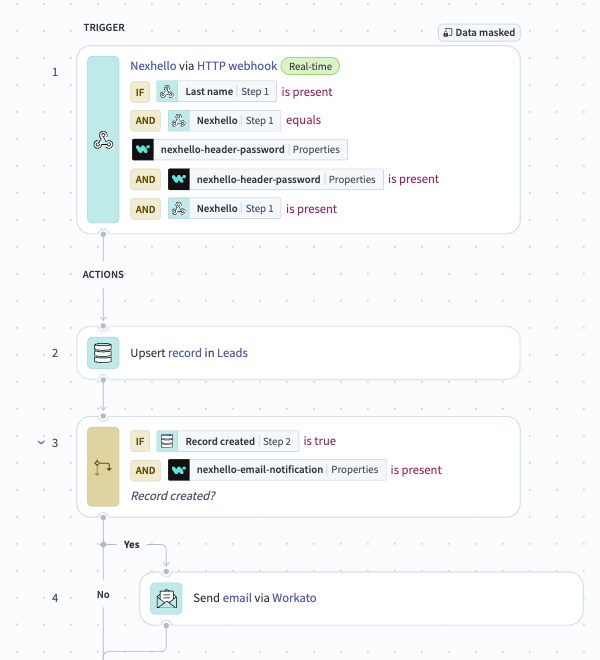
Checks the header before running its actions
The sample expects a header named NexHello. Its value must match the nexhello-header-password environment property. The recipe also checks that both values are present and that the contact has a last name.
Set your own strong password in Workato and use the same value in NexHello’s API key in header connection settings. The screenshot password is an example, not a value to copy.
This check controls whether the recipe runs its actions. A successful webhook response alone does not prove that the checks passed or the table was updated. Verify the Workato job and result as part of testing.
Creates or updates a table row using the contact ID
The Upsert record in Leads action looks for the NexHello contact ID in the table’s id column. If it finds a row, it updates it. If not, it creates one.
For example, send a saved contact, correct the company in NexHello and send that same contact again. The ID remains the same, so the recipe updates the existing row.
A different saved contact has a different ID. This example does not decide whether two separately captured records belong to the same person.
Emails your chosen address on the first insert
The email branch runs when Workato reports Record created = true and nexhello-email-notification is set. A repeat send that updates the same row skips this branch.
Use the property for an internal notification address. This is a new-record alert, not a follow-up email to the scanned person. Leave the property empty if you do not want this alert.
The nexhello-current-event property can add an event label to the record. Replace the example event with a useful label for your own workflow, or leave it empty.
What to check before your first real contact
You need a Workato account with access to package import, HTTP webhooks, data tables, email and the relevant environment properties. You also need NexHello with system connections enabled. These options depend on account, plan and installation; ask through the app’s Help if connection setup is not visible.
Review the trigger’s expected JSON and each upsert field. The sample contains common contact fields and some older single-value references. Current contact sends can use collections such as phones, emails, websites, linkedin_links and addresses. Where the received data differs, choose the correct list item or change the mapping in your own Workato copy. Decide whether you need the primary value or all values.
The recipe requires a last name. If your contacts can have only one name, change that condition and test the result. Keep the contact ID and password checks appropriate for your workflow.
The sample stores selected contact fields. It does not build a full table of every interaction or follow-up included in a contact send, and it does not send card image files.
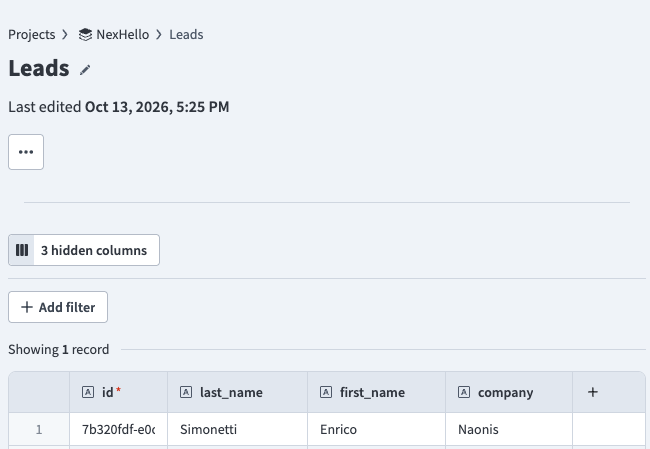
Test with fictional details. Confirm a first insert, a repeat update and the email branch. Check that a missing or incorrect password does not run the table or email actions. The app’s connection test has no contact details and will not create a lead by itself.
Workato can acknowledge a webhook even when the recipe skips it. A row saved before an email failure can also remain in the table; a later update does not automatically rerun the new-record email. Check job history and handle notification failures deliberately.
Extend Workato to Salesforce, HubSpot or ActiveCampaign
Once the receiving step works, add the destination your team needs:
| Destination | Example next step you can configure |
|---|---|
| Salesforce | Find and create or update the appropriate lead or contact, with your chosen owner and matching rule. |
| HubSpot | Find and create or update a contact, then map the properties your team uses. |
| ActiveCampaign | Create or update a contact through a suitable connector or API action, then apply the fields or tags you choose. |
| Another system | Use an available connector or API to send the record to your own workflow. |
Workato documents Salesforce actions and HubSpot actions. Its ActiveCampaign integration page describes connector and custom-action options. Available actions, access and setup depend on the system and your account.
Decide how a NexHello ID relates to the destination’s record ID or matching fields. Also decide which details to send, who owns the record and what should happen when a step fails. The table’s contact-ID upsert does not automatically supply those rules for a CRM.
Keep the first version small. Confirm that one contact arrives correctly and that a repeat send updates the same row before adding more steps.
For Workato’s own setup instructions, see importing recipe packages, the HTTP webhook trigger and the data table upsert action.
Prefer n8n or need custom changes?
If n8n fits your existing setup, use the n8n business card to Google Sheets starter. It is another starting point you can adapt for your destination.
For additional Workato or n8n steps, destination mapping or changes to the example, see Naonis custom CRM and integration work. Paid work is scoped separately; neither free download includes setup, improvements, maintenance or support.
Set up the Workato starter template
Select a screenshot to view it at full size in a new tab.
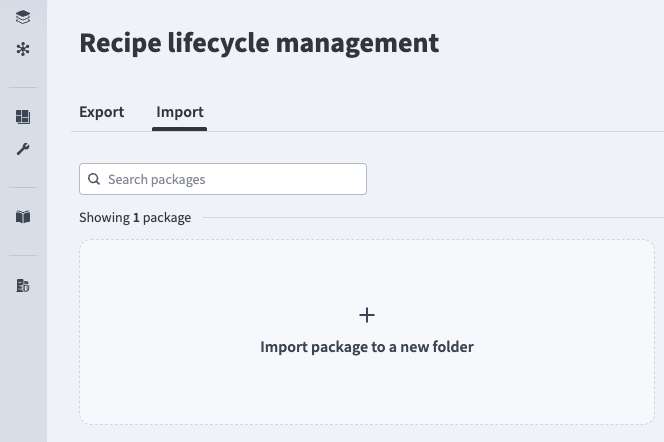
1. Import the ZIP into Workato
Download the ZIP above. In Workato, open Tools → Recipe lifecycle management → Import. Upload the ZIP, choose a new target folder or project, and review the import. The screenshot shows the import entry point; the exact controls depend on your workspace.
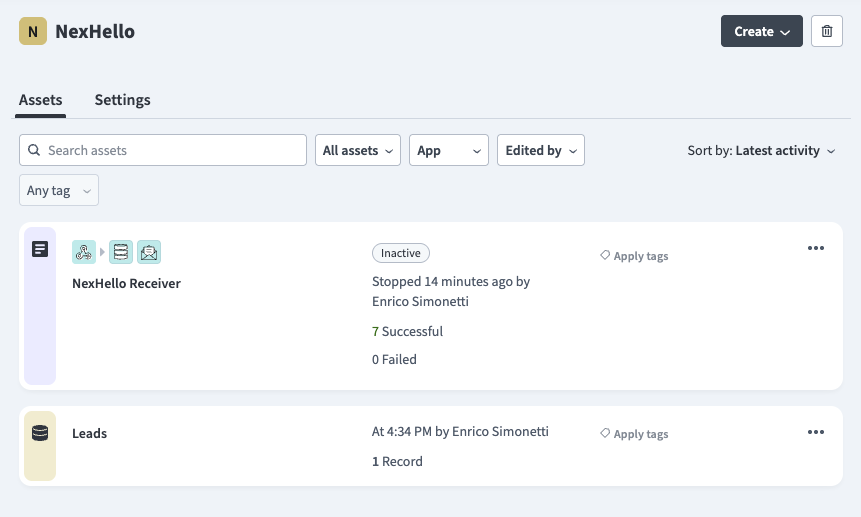
2. Review the recipe and Leads table
Find the NexHello Receiver recipe and Leads data table. Check that the upsert points to the imported table and uses its id column to match contacts. Review the expected request fields and each mapped column against a test contact from your app. The screenshot is the supplied example workspace, not a promise that an imported package contains its record or job history.
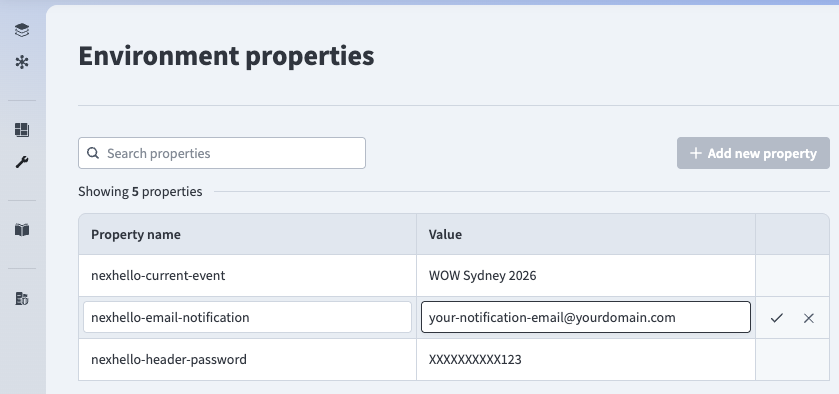
3. Set your password and notification address
Set nexhello-header-password to a strong value you choose. Set nexhello-email-notification to the address that should receive new-contact alerts, or leave it empty to skip email. Optionally set nexhello-current-event to label the table records. Exported property values are empty. The values shown here are examples: do not use the screenshot password.
4. Connect NexHello and test a complete contact
Review and start the configured recipe, then copy the webhook URL shown by Workato. In NexHello connection settings, choose API key in header, use NexHello as the header name, and enter the same password. Save and test the connection, then explicitly send a test contact with an ID and last name. Check Workato job history and the table. Send the same contact again after an edit: it should update the same record and skip the new-record email.
Common questions
How do I send business card contacts from NexHello to Workato?
Import the sample ZIP into Workato, configure its table and properties, then add its webhook URL and matching header password in NexHello. With system connections enabled, open a saved contact and choose Send to your system. Check the Workato job and saved row before using real contact data.
Is the Workato recipe template free?
Yes. The ZIP is a free starting point, provided as-is without warranties to the extent permitted by law. It does not include a Workato account, NexHello subscription, setup, customisation, maintenance or support. Workato feature availability and usage charges depend on your own account and plan.
How does the Workato webhook header password work?
NexHello sends the password in a header named NexHello. The recipe checks that the incoming value matches nexhello-header-password and that both values are present before running its actions. This is a recipe condition, not a guarantee of an HTTP authentication error response. Keep the password private and check Workato jobs when testing.
Will sending the same contact twice create duplicate Workato records?
The sample upserts using the NexHello contact ID. Sending the same saved contact again updates its matching row. Two separately saved contacts have different IDs, even if they describe the same person, so this sample does not deduplicate by email, name or company.
When does Workato send the new-contact email notification?
The sample sends email only when the upsert creates a new row and nexhello-email-notification contains an address. Updating an existing row skips that branch. Configure and test email delivery in your Workato workspace; the notification is sent by Workato, not by NexHello.
Can I change the Workato notification email address or turn it off?
Set nexhello-email-notification to your chosen notification address. Leave it empty to skip the email branch. This address receives an internal new-contact alert; it is not an automatic follow-up email to the person you scanned.
What contact information does the Workato template save?
The example Leads table maps the contact ID, first and last name, company, contact methods, About this person and an optional event label. Review the mappings against your actual request. The sample includes some single-value contact references, while current app requests can contain lists of phones, emails, websites, LinkedIn links and addresses; you may need to amend those mappings. The ZIP contains no exported lead records.
Does NexHello automatically sync contacts to Workato?
No. Saving or editing a contact in NexHello does not send it. You choose Send to your system for one saved contact at a time. This example is an outbound send, not automatic or two-way sync, and needs internet when you send. Card images are not included.
Why did the connection test succeed but no Workato row appeared?
The app connection test sends a test event without contact details. This sample requires a last name as well as a matching nonempty header password. A Workato webhook response can acknowledge receipt before a recipe condition or later step is checked. Send a complete test contact and inspect recipe job history, mappings and the table.
Can I send business card contacts to Salesforce, HubSpot or ActiveCampaign through Workato?
You can extend this receiver with suitable Workato connector or API actions for those systems. Configure the account, fields, matching rules and destination steps yourself. The supplied ZIP receives contacts into a Workato table and sends a new-record alert; Salesforce, HubSpot and ActiveCampaign steps are not included.
Can Naonis customise the Workato recipe for my business?
Yes, you can ask Naonis about paid custom integration work, including destination steps, field mapping and changes to the workflow. Scope, fees and any ongoing support are agreed separately. Free-template setup, improvements and support are not included in the download.
Is there an n8n alternative to this Workato template?
Yes. The linked n8n starter sends selected contact fields to Google Sheets and can be adapted for another system. Choose the platform that fits your existing tools, account and skills. Both downloads are as-is examples that need configuration and testing.
Can I download the Workato contacts as a CSV file?
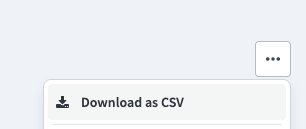
Use the Leads table menu and choose Download as CSV where your Workato account allows it. This exports the table; it is not a NexHello backup and cannot restore the app's full contacts, notes and follow-up history.
Accounts and help
Need changes, extra steps or a connection to your CRM? See custom CRM and integration work, or contact Naonis about paid integration help ↗. Scope, fees and any ongoing support are agreed separately.