
Why backup?
NexHello keeps your contact records, notes and follow-ups on your device. It does not automatically upload scanned contact details or card images, back up your records to the cloud, or sync them between phones.
You can create a backup file and choose where to keep it. If you lose your phone or remove its app data without a usable backup, NexHello cannot retrieve those records for you.
Save a new backup after important changes. NexHello does not update an earlier backup file for you.
Save a backup
With active trial or paid access, open the menu and choose Save backup. In the file picker, choose the destination and save the file.
You can keep it on your phone or choose another location offered by your device. If you choose a cloud storage location, that service stores the file because you selected it. NexHello does not choose a cloud destination or automatically upload a backup for you.
Keep a copy somewhere you can access without the original phone. A backup stored only on a lost phone cannot help you recover its records. Keep the file private: it contains contact information and notes.
What the backup includes
The structured backup keeps contacts, notes, follow-ups, activity history, recognised source text, My Card and supported settings.
It does not include business card photos or other source-image files. Save or transfer those separately through Photos or Gallery. Your phone’s photo backup settings may copy those images to a cloud photo library; that is separate from NexHello’s scanning and file backup.
Restore on your phone
With active access, open the menu and choose Restore from backup. Select your NexHello backup file and read the confirmation before continuing.
Restoring replaces the current app data. It does not merge two sets of contacts. Save a backup of your current records, before completing a restore.
Check the restored records and review reminder permissions on the new phone.
Export is different
Export contacts and Export contacts and activity create CSV files for spreadsheets or other systems. They are not backup files and cannot restore the app.
Restoring a store purchase restores access, not your contacts. Keep your backup file separately.
Sending one contact is different from backing up
An enabled system connection lets you choose Send to your system from a saved contact. That sends one contact and its saved activity to a receiving service you configured. It does not back up your app or sync every contact. See how to connect and send a contact.
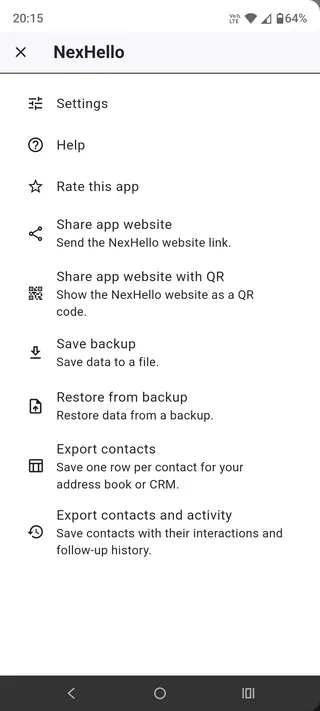
Android screenshots from September 2026. Appearance may vary by device and app version.