
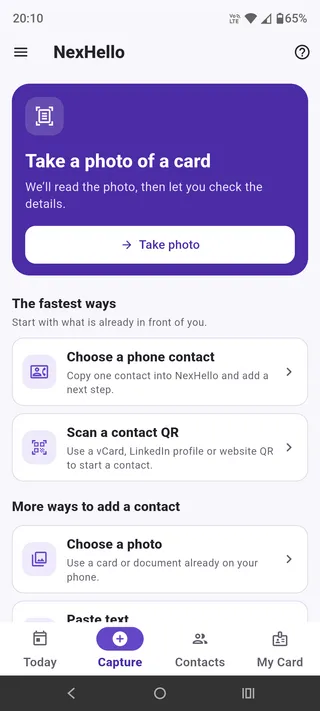
Android screenshots from September 2026. Appearance may vary by device and app version.
From a business card to Google Sheets or your CRM
Turn a paper business card into a contact you can act on, then send the details to a spreadsheet or CRM workflow you control.
Business card → reviewed NexHello contact → your n8n workflow → Google Sheets or your CRM
NexHello saves contacts on your device. After saving, open a contact and tap Send to your system when you are ready. NexHello never sends contacts automatically.
For the general setup and send steps, see Connect NexHello to another system.
Free n8n Google Sheets template
Download the free NexHello n8n workflow template. It receives a contact through an authenticated webhook, prepares and checks the fields, then appends or updates a row in your Google Sheet using contact_id to match contacts.
The JSON is free and provided as-is, without warranties to the extent permitted by law. It is a starting point, not a managed integration: you connect your own accounts, choose your spreadsheet, test the workflow and decide whether it suits your setup. No template setup or support is included. n8n, Google services, NexHello access and any separately agreed paid work are not included in the download.
Follow the illustrated steps on this page. Use test data first and keep your webhook credentials private.
Adapt the workflow for your CRM
You can adapt the n8n workflow for HubSpot, Salesforce, ActiveCampaign or another system with a suitable n8n node or API. You are responsible for configuring the destination, field mapping, permissions and duplicate handling. This template is not a ready-made native CRM connection.
If your business uses Workato, see the Workato business card to CRM starter. That example starts with a table and a new-contact email; you add the downstream systems you need.
For extra steps, different destination fields or changes to either example, see Naonis custom CRM and integration work. Scope, fees and any ongoing support are agreed separately.
What you need
- NexHello with webhook access enabled. Webhook setup may not be visible in every installation; use Help in the app to ask about enabling integrations.
- An n8n account or instance and a Google account with access to the destination spreadsheet.
- A test contact and destination so you can confirm the fields and repeat-send behaviour before using real data.
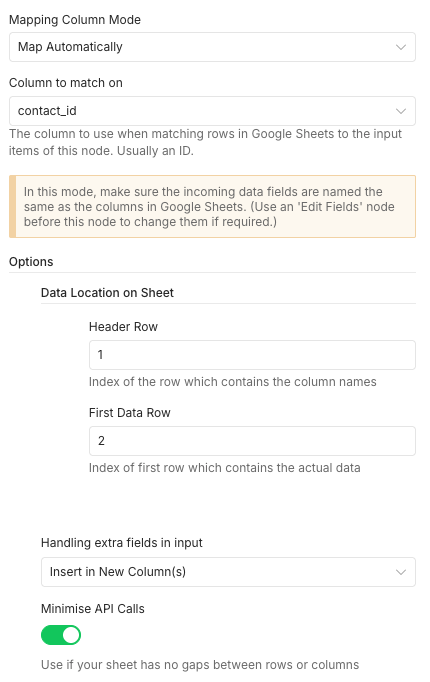
The template expects a Google Sheets header row containing contact_id; its Google Sheets node is set to match on that column and map matching field names automatically. It includes selected contact fields and send details such as event and time fields, a NexHello user ID and an idempotency key. Review the workflow and sheet columns before using real data, and only send details you are authorised to share.
For platform-specific help, see n8n’s documentation for the Webhook node and Google Sheets node.
Set up the free n8n template
Select a screenshot to view it at full size in a new tab.
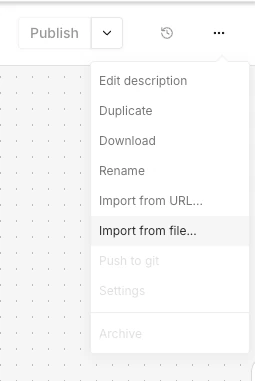
1. Import the workflow JSON
Download the JSON above. In n8n, open the workflows menu, choose “Import from file”, and select the downloaded file. The workflow starts inactive; review it before publishing.
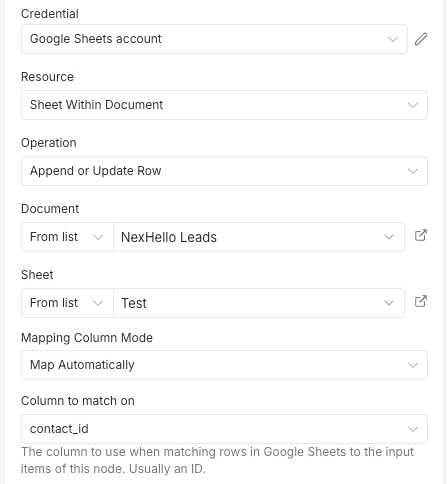
2. Connect your Google Sheet
Create a sheet with a header row that includes contact_id. Open “Save Contact to Google Sheets”, connect your Google account, then choose your own document and sheet tab. The template matches rows on contact_id and maps matching column names automatically.
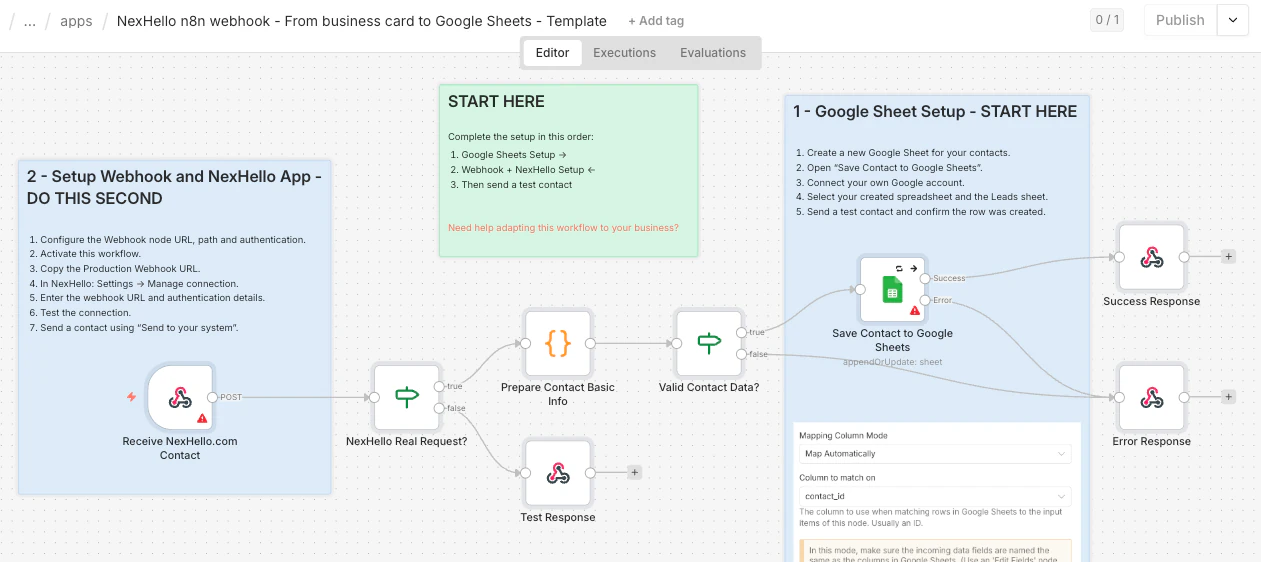
3. Set up the webhook and NexHello
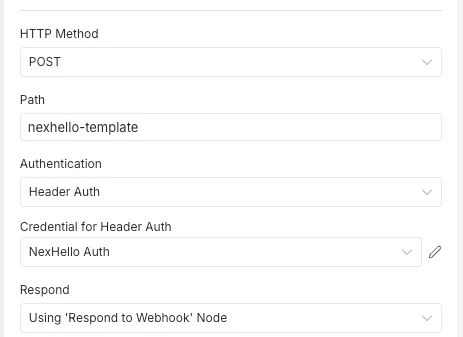
Open the Webhook node and use POST with the template path. Set up Header Auth with a credential you create in n8n. Publish the workflow, copy its production webhook URL, then enter that URL and the matching authentication details in NexHello under Settings → Manage connection. Test the connection and send a test contact before using real data.
Common questions
How do I send business card contacts to Google Sheets?
Download the free n8n workflow template on this page, connect your own Google account and sheet, then connect its authenticated webhook in NexHello. After saving a contact, open it and tap “Send to your system” when you are ready. Contacts are never synced automatically.
Is the business card to Google Sheets n8n template free?
Yes. The downloadable workflow JSON is free and provided as-is, without warranties to the extent permitted by law. It does not include setup, customisation, maintenance or support. NexHello, n8n hosting or account charges, Google services and any paid help are separate.
Can I send business card contacts to HubSpot, Salesforce or ActiveCampaign?
The workflow is a starting point you can adapt using a suitable n8n node or API. It is not a ready-made native HubSpot, Salesforce or ActiveCampaign integration; you need to configure and test the destination and field mapping yourself.
Does NexHello automatically sync contacts to Google Sheets?
No. Contact details remain on your device unless you choose to send a contact through a webhook connection that you have configured.
What information does the template put in Google Sheets?
It maps selected contact fields plus send details, including event and time fields, a NexHello user ID and an idempotency key. Review the workflow and sheet columns before sending real contact data.
Accounts and help
Referral link: Naonis may earn a commission if you sign up through this link.
Need changes, extra steps or a connection to your CRM? See custom CRM and integration work, or contact Naonis about paid integration help ↗. Scope, fees and any ongoing support are agreed separately.