
Record what happened
Open Today or the contact’s details and tap Complete on the follow-up.
Choose Completed, Tried, No response or Not now. Add a note if useful and check when it happened. Tap Save and complete.
All four outcomes close that follow-up and keep the result in the contact’s activity. Choose Keep open if you do not want to close it yet.
Move the date
Tap Reschedule, choose the new date and time, then save. The action stays open.
A saved date does not guarantee a notification. Check your reminder settings if alerts are missing.
Choose the next step
Open the contact and tap Add follow-up to create another action. You can keep more than one open action for the same person.
Completing an action does not send a message or automatically create another follow-up.
Read the history
The contact’s Activity shows saved notes and follow-up history. Use it to remember what happened before the next conversation.
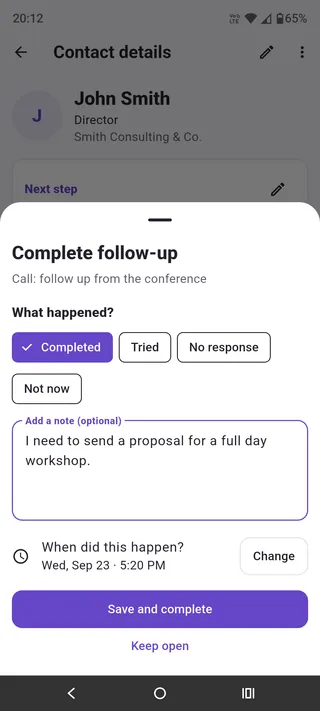
Android screenshots from September 2026. Appearance may vary by device and app version.